






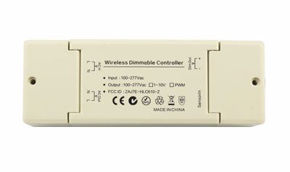
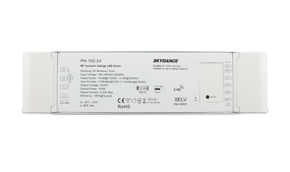
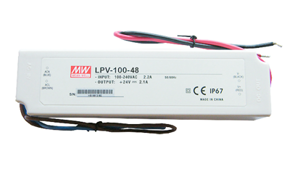
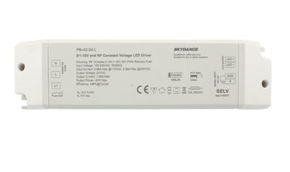
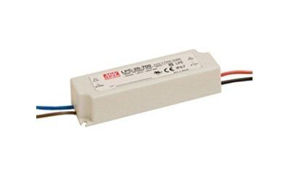
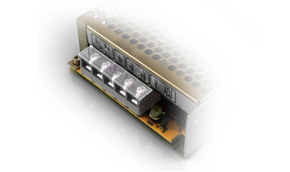
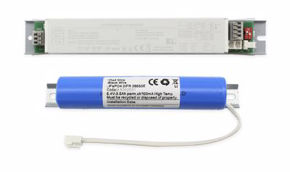
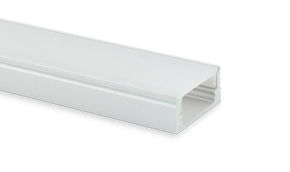

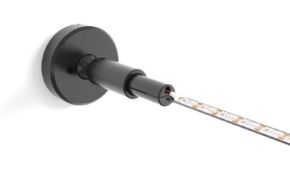
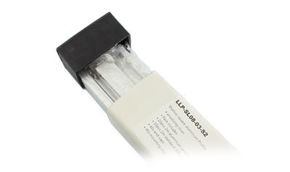
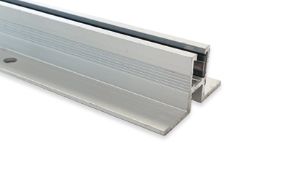
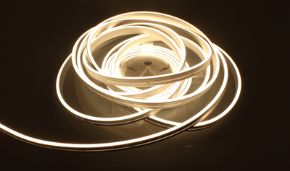

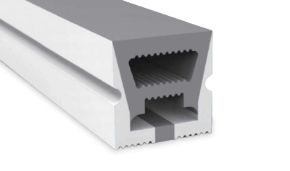
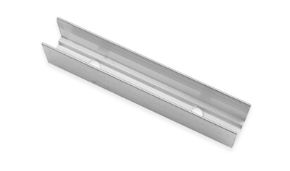
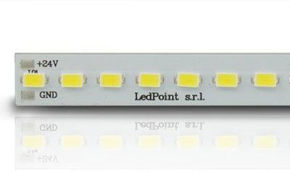
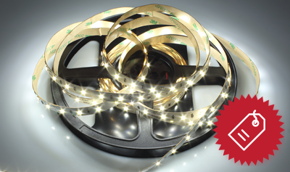
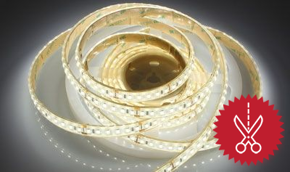
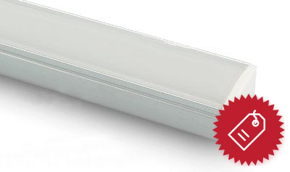

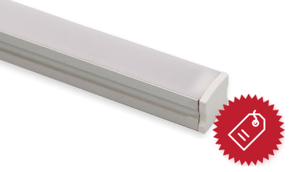
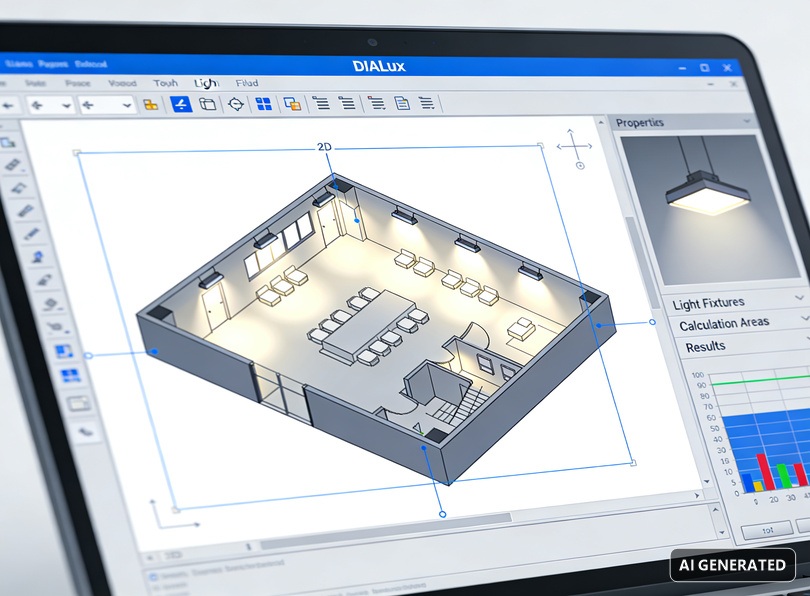
In this guide, we will explore everything about DIALux: what it is, how to download it, how to install it, how to use it, which file formats it reads, its advanced features, and how it seamlessly integrates professional products from the Ledpoint.it catalog, from LightingLine aluminum profiles to high-efficiency LED strips, up to Skydance control systems and Mean Well power supplies. We will do this with clear, technically precise language always oriented toward practical application.
Whether you are a beginner architecture student, an experienced electrical engineer, an architect seeking sustainable lighting solutions, or a lighting technician eager to update your knowledge on the latest versions of DIALux evo, you will find in this article concrete answers, market data, step-by-step tutorials, technical tables, industry statistics, and direct links to products that allow you to transform lighting calculations into real, certified, and lasting installations.
What you will learn by reading this guide on DIALux
Before diving into the details, here is a summary of the topics covered: what DIALux is and what it is used for, the differences between DIALux evo and DIALux 4, how to perform the correct DIALux download, how to install it on Windows and why there is no native DIALux for Mac, how to use DIALux online and how to follow an effective DIALux tutorial, how to perform professional lighting calculations, how to integrate Ledpoint LED strips into projects, how to comply with UNI EN regulations, how to simulate UGR glare, how to use manufacturer plug-ins for DIALux (Philips, Osram, Disano, Gewiss), and how to present results to clients. A unique, comprehensive guide updated for 2026.
In this article...
What is DIALux: definition, history, and role in lighting design
To answer the question what is DIALux, we must start with a clear technical definition: DIALux is a lighting calculation and design software developed by the German company DIAL GmbH, based in Lüdenscheid, Germany. It is a professional, manufacturer-independent tool that allows planning, calculating, and visualizing lighting for indoor, outdoor, urban, and sports environments with a level of precision compliant with international technical standards. Introducing DIALux into the design workflow enables the transition from empirical light estimation to measurable data in lux, watts, and UGR.
DIALux was born in 1994 as a small calculation utility for German installers and, over three decades, has become the de facto global standard in the lighting design sector. Today, DIALux software is available in over 25 languages, downloadable for free from the official DIAL website, and is supported by virtually all major lighting manufacturers. Knowing DIALux means speaking the same technical language as Philips, Osram, Disano, Gewiss, Erco, and all major market players, because each of them releases DIALux plug-ins containing their updated photometric catalogs.
There are two main versions of DIALux that still coexist today: DIALux evo, the most recent and complete version, and DIALux 4, a lighter historical version still used by many professionals for quick projects. When referring to modern, complete lighting design software, the reference is to DIALux evo; when referring to DIALux 4 download, it means the classic version, still available for compatibility reasons with old projects and historical DIALux plug-ins.
Why DIALux has become the global standard
The success of DIALux rests on three fundamental pillars: it is free, it is independent, and it is universally supported. Free access has lowered the entry barrier, allowing even small firms and students to access professional lighting calculation software; independence from manufacturers ensures objective calculations; universal manufacturer support, via DIALux plug-ins, ensures that every luminaire on the market can be simulated with real photometric data in LDT or IES format.
DIALux in the context of lighting design software
In the landscape of lighting design software, there are several alternatives to DIALux: Relux (Swiss, similar philosophy), AGi32 (more widespread in the USA), 3ds Max with V-Ray (for hyper-realistic rendering but not for regulatory calculation), and Calculux by Philips. However, none of these lighting design software tools matches DIALux's market penetration in Europe, where it represents the reference tool for regulatory verification.
What is DIALux used for: practical applications and sectors of use
The question what is DIALux used for admits both a concise and a detailed answer. The concise answer is: DIALux is used to calculate how much light reaches a surface, with what uniformity, with what visual comfort, and with what energy consumption. The detailed answer requires exploring the application areas where DIALux is indispensable: offices, schools, hospitals, industries, shopping centers, sports facilities, parking lots, urban streets, museum galleries, high-end residential environments, and architectural façade lighting.
Each area has a specific reference standard, and DIALux serves precisely to verify project compliance with these standards. In offices, UNI EN 12464-1 is verified, requiring at least 500 lux on the work plane and a UGR below 19; in schools, the same 500 lux apply but with higher uniformity; in sports facilities, EN 12193 applies with levels from 200 to 750 lux depending on the game class; in urban streets, UNI 11248 applies with lighting classifications from M1 to M6.
Without a lighting calculation performed with certified DIALux software, none of these verifications can be considered valid for design, authorization, or commissioning purposes. DIALux is not just about "seeing how the light looks": it is about demonstrating that the installation complies with the law, and this is particularly relevant for electrical system designers who must sign the declaration of conformity.
Application in the tertiary and corporate sector
In the tertiary sector, DIALux is used to design open-plan offices, meeting rooms, receptions, and common areas. The integrated use of DIALux software with products such as Ledpoint Fx2 and DN2 series LED strips, installed inside suspended LightingLine profiles, allows easily achieving the regulated 500 lux while reducing consumption by 30-40% compared to traditional fluorescent solutions.
Application in high-end residential sector
In residential settings, DIALux transforms interior design: backlit walls, luminous ceilings, kitchens with perfectly illuminated worktops, and bathrooms free of glare. An architect who masters DIALux can present a realistic rendering to the client already in the preliminary phase, anticipating the effect of LED strips inserted into Ledpoint trimless profiles for drywall.
Application in the industrial and logistics sector
In industrial environments, DIALux allows calculating illumination for warehouses, production areas, handling corridors, and loading zones. Industrial lighting design must guarantee 200 to 750 lux depending on the precision of the visual task performed.
DIALux evo vs DIALux 4: differences, advantages, and which to choose
One of the most frequent questions among those approaching DIALux is: should I install DIALux evo or DIALux 4.12? The answer depends on several factors, but it is worth analyzing the two versions in detail to understand which lighting design software is more suitable for your needs. DIALux evo is the current version, developed from scratch with a more modern radiosity-based calculation engine, while DIALux 4 is the historical version, frozen but still supported and still preferred for quick single-room projects.
DIALux evo is the right choice for: complex projects with multiple connected spaces, outdoor street or urban lighting projects, BIM projects with IFC file import, natural lighting simulations with climate data, and projects requiring advanced rendering. DIALux evo download is available for free on the DIAL website and includes all plug-ins from partner manufacturers.
DIALux 4 (the latest version is 4.13, but many professionals still use DIALux 4.12) is preferable for: quick calculations of single rooms, compatibility with old DIALux plug-ins not updated for evo, projects with limited hardware resources. However, development of new features has stopped on this version: those starting to use DIALux today should aim directly for DIALux evo.
Comparative table DIALux evo vs DIALux 4
| Feature | DIALux evo | DIALux 4 |
|---|---|---|
| Current version | 13.x (2026) | 4.13 (legacy) |
| Calculation engine | Advanced radiosity | Classic radiosity |
| Multi-room | Yes, complete buildings | Limited |
| Outdoor street lighting | Yes, with EN 13201 standard | Limited |
| IFC/BIM import | Yes | No |
| DWG/DXF import | Yes | Yes |
| Natural light (daylighting) | Yes, with climate data | No |
| Interactive rendering | Advanced | Basic |
| Supported DIALux plug-ins | Yes, all new ones | Legacy only |
| Hardware requirements | Medium-high | Medium-low |
| Windows 11 compatibility | Yes | Yes (with compatibility mode) |
| Cost | Free | Free |
When to still use DIALux 4.12
Some professionals continue to use DIALux 4.12 for small-scale projects (single office, single shop) due to calculation speed. There is also an ecosystem of historical DIALux plug-ins, especially for pre-2018 catalogs, that only work on DIALux 4.
Is DIALux free? Costs, licenses, and software versions
One of the most searched questions online is: how much does DIALux cost? Or, equivalently: is DIALux free? The answer is clear and straightforward: DIALux is completely free, both in the DIALux evo version and the DIALux 4 version. There are no paid versions, no subscriptions, no commercial licenses to purchase, and no mythical paid "DIALux Pro" (the term "DIALux Pro how much does it cost" circulating online stems from confusion with other software or paid training courses).
DIAL GmbH's business model is not based on selling DIALux software to end users, but rather on partnerships with lighting fixture manufacturers, who pay to include their catalogs in official DIALux plug-ins and to receive technical support in developing photometric files. This virtuous model has allowed DIALux to remain free and accessible to all professionals.
When wondering how much DIALux Pro costs or how much a lighting calculation costs, it is important to distinguish between the cost of the software (zero, because the official DIALux free download exists) and the cost of the professional service of whoever performs the calculation, which can range from €150 for a single residential room to several thousand euros for a complete sports or industrial installation.
Indirect costs of using DIALux
Even though DIALux is free, professional use involves some indirect costs: an adequate computer (multi-core CPU, minimum 16 GB RAM, dedicated graphics card), possible DIALux training courses (€300 to €1,500 for a complete course), learning time (typically 40-80 hours to reach full autonomy), and periodic updates of libraries and manufacturer DIALux plug-ins.
Are there paid alternatives to DIALux?
Yes, there are several paid lighting design software options (AGi32, Visual, ElumTools, Lighting Reality), but none offers the quality/diffusion ratio of DIALux. For the vast majority of professional applications in Europe, DIALux is the reference solution.
DIALux download: how to safely download DIALux evo and DIALux 4
The official DIALux download is performed exclusively from the DIAL GmbH website, at dialux.com (download section). It is essential to avoid third-party sites offering DIALux free download from unofficial sources: often these packages contain adware, outdated libraries, or actual cybersecurity threats disguised as DIALux evo download. Always relying on the official website is the golden rule for a safe DIALux download.
To download DIALux, simply: visit the official website, register for free (registration helps DIAL profile the user community and send updates), accept the terms of use, and proceed with the DIALux evo download. The downloaded file is an executable installer of about 1-2 GB depending on the version, which includes the base DIALux software without manufacturer plug-ins, which must be downloaded separately.
For the DIALux 4 download, a similar procedure is followed, but the file is significantly smaller (about 200-300 MB) and installation is faster. The DIALux 4 download is still available on the official website in the "DIALux 4 (legacy)" section and includes classic libraries compatible with the historical software.
Verifying download integrity
After completing the DIALux download, it is good practice to verify the integrity of the downloaded file by checking the digital signature of the installer (it must be signed by DIAL GmbH) and comparing the file size with that indicated on the official website.
DIALux portable: does it exist?
No, there is no official portable version of DIALux. Alleged "DIALux portable" versions found on alternative download sites are unauthorized modifications, and we categorically advise against their use.
DIALux for Mac: can the software be used on macOS? Solutions and alternatives
One of the most frequent questions among architects and architecture students is: is there a native DIALux for Mac? The answer, as of 2026, is negative: there is no native version of DIALux for Mac. DIAL GmbH has always developed the software exclusively for Windows, and this strategic choice does not seem destined to change in the short term. However, there are several effective solutions for using DIALux on Mac without abandoning your Apple ecosystem.
The first solution, historically the most widespread, is Boot Camp: install Windows in dual boot on a Mac with an Intel processor and run DIALux as a native Windows application. However, this solution is no longer feasible on new Macs with Apple Silicon chips (M1, M2, M3, M4), which do not support traditional Boot Camp.
The second solution, today the most widespread for those wanting DIALux on Mac, is virtualization with software like Parallels Desktop or VMware Fusion: create a Windows virtual machine within macOS and install DIALux inside the VM. On Macs with Apple Silicon chips, it is necessary to install Windows 11 ARM, and DIALux works correctly thanks to the x86 translation layer.
DIALux performance on virtualized Mac
The performance of DIALux on Mac via virtualization on Apple Silicon is surprisingly good for medium-complexity projects. For very large projects (complete buildings, extensive street lighting installations), a dedicated Windows PC is still recommended.
Cloud alternatives: DIALux on remote virtual machines
A third solution, growing rapidly in 2026, is using remote Windows virtual machines in the cloud (Microsoft Azure Virtual Desktop, Amazon WorkSpaces) on which DIALux is installed and accessed from Mac via RDP client.
DIALux online: is there a web version? Possibilities and limitations
Another frequent question is: is there a DIALux online? The answer, as of 2026, is ambiguous. There is no official DIALux online in the full sense of the term, meaning a web application that allows performing a lighting calculation online directly from the browser. However, DIAL GmbH has launched some collateral web services that approach the concept of DIALux online.
The first is DIALux Cloud, a project storage and sharing service for DIALux that allows saving files to the cloud and collaborating with other designers. It is not an online lighting calculation but a complement to the desktop software.
The second is DIAL Luminaire Finder, an online search engine for lighting fixtures that allows finding the right product for your project and downloading its LDT photometric file directly, to then import into desktop DIALux. This is also not strictly a DIALux online, but a complementary web tool.
Online lighting calculation: alternatives to DIALux
There are several web services offering simplified online lighting calculations (e.g., spacing calculators, required flux calculators), useful for rough estimates but not substitutes for DIALux for regulatory verification.
DIALux installation step by step: Windows, requirements, and configuration
How to install DIALux on Windows? The DIALux installation process is straightforward but requires attention to certain details. Let's see step by step how to install DIALux evo, and secondarily how to install DIALux 4 in its version 4.13, to avoid the most common errors that many users encounter during their first installation of the lighting design software.
To install DIALux evo: download the official installer from the DIAL website, right-click the executable and select "Run as administrator", accept the license terms, select the installation folder (recommended default in C:\Program Files\DIAL), choose the interface language (Italian available), wait for completion, restart the PC, and proceed with initial configuration.
To install DIALux in version 4: download the DIALux 4 download from the legacy archive on the DIAL website, run the installer as administrator, follow the wizard keeping default settings, install separately the DIALux plug-ins of desired manufacturers.
DIALux evo system requirements
| Component | Minimum | Recommended |
|---|---|---|
| Operating system | Windows 10 64-bit | Windows 11 64-bit |
| Processor | Intel i5 / AMD Ryzen 5 | Intel i7/i9 / AMD Ryzen 7/9 |
| RAM | 8 GB | 32 GB |
| Graphics card | Integrated DirectX 11 | Dedicated NVIDIA RTX 6GB+ |
| Disk space | 10 GB | 50 GB (for libraries) |
| Resolution | 1920x1080 | 2560x1440 or higher |
Common installation problems
The most common problems during DIALux installation are: "Missing Visual C++ Runtime" error (solvable by installing the VC++ Redistributable package), permission errors (always run as administrator), antivirus blocking the installer (add a temporary exception).
DIALux evo interface: menus, tools, and first overview
Opening DIALux evo for the first time can be disorienting, because the DIALux software interface is rich in panels, menus, and icons. However, once the organizational logic is understood, the DIALux interface proves to be coherent, professional, and productive. Let's therefore examine the main elements of the lighting design software interface, starting with a general overview and moving to operational details.
The main screen of DIALux evo is divided into: top menu bar (File, Edit, Construction, Luminaires, Calculation, Documentation), central 3D viewport where the project is visualized, right-side panel with properties of the selected object, bottom panel for calculation results, and left-side toolbar for construction and modeling functions.
DIALux evo working modes
DIALux evo organizes the workflow into sequential "modes": Construction (modeling the building or room), Luminaires (inserting light sources), Calculation (running simulations), Documentation (creating the PDF report to deliver to the client).
Customizing the interface
The DIALux evo interface is customizable: panels can be moved, different layouts saved for different project types, and advanced tools activated such as the "flux calculator" or "UGR glare calculator".
File formats read by DIALux: LDT, IES, DWG, DXF, IFC, M3D
One of the most important technical questions for professionals is: which file formats does DIALux read? Knowing the formats supported by DIALux software is fundamental for correctly integrating it into the design workflow with other CAD, BIM, and 3D modeling software. Let's examine in detail which files DIALux reads and what each format is used for in the lighting calculation process.
The main formats read by DIALux are photometric files LDT (Eulumdat, European standard) and IES (IESNA LM-63, American standard), which contain the light distribution curves of luminaires. Without an LDT or IES file, no luminaire can be correctly simulated in DIALux.
For geometry, DIALux evo imports DWG and DXF (AutoCAD formats), IFC (BIM standard for Revit, ArchiCAD), SAT (ACIS format), STF (historical DIALux exchange format), and M3D (proprietary DIALux 3D format for three-dimensional luminaire models). These formats allow importing the architectural base directly from the CAD project.
Table of formats supported by DIALux
| Format | Type | Use in DIALux |
|---|---|---|
| LDT | Photometric | Luminaire photometric curves (European standard) |
| IES | Photometric | Luminaire photometric curves (US standard) |
| DWG | CAD | AutoCAD floor plan import |
| DXF | CAD | Universal CAD exchange |
| IFC | BIM | BIM model import (Revit, ArchiCAD) |
| M3D | Proprietary 3D | 3D luminaire models |
| STF | DIALux exchange | Project exchange between DIALux 4 and evo |
| SAT | 3D ACIS | Solid 3D models |
| Export | Final report | |
| OBJ/3DS | 3D | Generic models (in evo) |
The LDT file: heart of lighting calculation
The LDT file is the true heart of DIALux software. It contains the photometric curve of the luminaire, i.e., the spatial distribution of luminous flux expressed in candelas for each solid angle. Without an accurate LDT file, every DIALux simulation is useless: incorrect input data produces incorrect output results.
Lighting calculation: what it is, how it is done, and why it is needed
To use DIALux professionally, it is necessary to understand what lighting calculation is and what it is used for. Lighting calculation is the mathematical procedure that, starting from the geometric characteristics of the environment, the optical properties of surfaces, and the photometric curves of luminaires, determines the values of illuminance (lux), luminance (cd/m²), uniformity, and glare indices (UGR) at every point of the analyzed surface.
Lighting calculation serves to: verify regulatory compliance of a lighting installation, correctly size the number and power of luminaires, optimize energy consumption, evaluate visual comfort for users, and produce the technical documentation legally required in many contexts (public offices, schools, hospitals, sports facilities).
Lighting calculations are articulated into: calculation of total required flux (total flux method), point-by-point calculation (more precise, used by DIALux), luminance calculation (for surfaces like monitors or signage), UGR calculation for glare verification.
How to perform a lighting calculation with DIALux
How to perform lighting calculation step by step in DIALux evo: 1) create or import the environment geometry, 2) define surface properties (wall reflectance 50%, ceiling 70%, floor 20% are standard values), 3) insert luminaires by loading LDT files, 4) set the calculation grid (e.g., 0.5 m × 0.5 m), 5) run the calculation, 6) verify compliance with regulated values, 7) iterate until optimal result.
Free lighting calculation and free lighting calculation
Searching for free lighting calculation or free lighting calculation only makes sense if referring to the software: DIALux is free, and therefore free lighting calculation is accessible to everyone. The professional service of whoever performs the calculation, however, has a cost proportional to project complexity.
Creating a DIALux project from scratch: complete tutorial
Here is a practical and complete DIALux tutorial for creating a project from scratch. This Italian DIALux tutorial is designed both for those seeking a first approach and for those wanting to consolidate their knowledge. It is a guided path applicable both to DIALux evo and, with some minor differences, to DIALux 4. We will use it to design a 6×5×3 meter office illuminated with Ledpoint LED strips installed in suspended LightingLine profiles.
Step 1 - Project creation: launch DIALux evo, select "New indoor project", enter client data and project name.
Step 2 - Room modeling: in Construction mode, draw the room perimeter (6 m × 5 m) using the "Rectangular room" tool, set internal height to 3 m, define work plane height at 0.75 m.
Step 3 - Surface properties: set ceiling reflectance to 70%, walls to 50%, and floor to 20% (standard UNI EN 12464-1 values).
Step 4 - Inserting luminaires: load the LDT file of the LightingLine profile equipped with Ledpoint Fx2 LED strips at 4000K, arranged in suspension along 4 lines parallel to the long side.
Step 5 - Calculation grid: set the calculation grid on the work plane at 0.5 m × 0.5 m, with 0.5 m offset from edges.
Step 6 - Launch calculation: start the calculation (on a modern PC it takes 30-90 seconds for a room of these dimensions).
Step 7 - Verify results: check that the average value is ≥ 500 lux, uniformity ≥ 0.6, and UGR ≤ 19.
Step 8 - Documentation: generate the PDF report in Documentation mode.
Italian DIALux tutorial: recommended resources
To deepen knowledge, there are numerous free Italian DIALux tutorials on YouTube, paid DIALux tutorials offered by major training centers, and the official DIALux manual downloadable in PDF from the DIAL website.
DIALux evo tutorial: more complex projects
For those seeking a DIALux evo tutorial dedicated to complex projects (multi-room offices, sports facilities, outdoor lighting), DIAL offers free monthly webinars and thematic workshops.
Adding a new luminaire in DIALux: libraries and plug-ins
A very frequent question is: how to add a new luminaire in DIALux? There are three main methods for adding luminaires to your DIALux project, and it is important to know them all to work flexibly with any product from the Ledpoint, LightingLine, or other manufacturers' catalogs.
Method 1 - Manufacturer DIALux plug-ins: many manufacturers (Philips, Osram, Disano, Gewiss) release free downloadable DIALux plug-ins that integrate into the DIALux software interface and allow selecting luminaires from the manufacturer's updated catalog. The Philips DIALux plug-in, Osram DIALux plug-in, and Disano DIALux plug-in are among the most downloaded.
Method 2 - Single LDT file import: if there is no DIALux plug-in for the desired manufacturer, you can directly download the LDT or IES file of the luminaire from the manufacturer's website and manually import it into DIALux via the "Import luminaire from photometric file" command.
Method 3 - DIAL Luminaire Finder: DIAL's online search engine allows finding luminaires from hundreds of manufacturers and downloading their LDT file, to import into desktop DIALux.
DIALux plug-ins for main manufacturers
| Manufacturer | DIALux Plug-in | Features |
|---|---|---|
| Philips | Philips DIALux plug-in | Complete Philips Signify catalog |
| Osram | Osram DIALux plug-in | Ledvance and LMS luminaires |
| Disano | Disano DIALux plug-in | Italian Disano catalog |
| Gewiss | Gewiss DIALux plug-in | Gewiss lighting catalog |
| Erco | Erco plug-in | Architectural luminaires |
| Performance in Lighting | PiL plug-in | Outdoor and architectural |
Integration of custom Ledpoint luminaires
Ledpoint catalog products can be integrated into DIALux by importing specific LDT files of LED strips in different LightingLine profiles, each with its specific photometric curve.
Ledpoint LED strips in DIALux calculations: from theory to practice
We now arrive at the technical core of this article, where DIALux concretely meets Ledpoint catalog products. For those designing with LED strips, DIALux software is the tool that allows transforming a product choice into a measurable lighting result. Let's see how to correctly simulate LED strips within DIALux to obtain reliable and optimized results.
Ledpoint LED strips are available in numerous variants for efficiency, power, color, and CRI: from the high-efficiency Fx2 series (over 140 lm/W), to the DN2 dimmable series exceeding 150 lm/W, up to special CCT adjustable (Tunable White) and RGBW series. Each of these strips, when inserted into a LightingLine profile, generates a different photometric curve, simulatable in DIALux via the respective LDT file.
When designing with DIALux using LED strips, it is fundamental to consider three factors: the actual luminous flux of the strip at the actual operating power, the optical losses introduced by the LightingLine profile diffuser, and the maintenance factor to apply to account for degradation over time.
Efficiency calculation and actual flux
Designing with DIALux allows determining the exact number of lux on the floor or work plane. When using Ledpoint LED strips inside LightingLine profiles, DIALux software accounts for optical losses due to diffusers:
- Diffusers and transmittance: in DIALux simulations it is essential to consider that a transparent diffuser (FK) retains about 26% of light, while opaque (FM) or satin (FS) diffusers can retain between 44% and 48%. This data is already integrated into LDT files.
- High-efficiency sources: for projects requiring high standards, it is possible to insert into DIALux high-efficiency strips exceeding 140-150 lm/W to ensure achieving lighting objectives with the lowest possible energy consumption.
Practical example of DIALux calculation with Ledpoint LED strips
For a 30 m² office with a target of 500 lux average, DIALux can guide the choice between different Ledpoint LED strip configurations: a solution with Fx2 strips at 14 W/m in 4 linear profiles of 3 meters allows easily reaching the target with a total consumption of about 170 W and an efficiency exceeding 5 W/m² × 100 lux benchmark.
Comparison of LED strip efficiencies in DIALux
| Ledpoint Series | Efficiency (lm/W) | Typical Application |
|---|---|---|
| Fx2 high efficiency | 140+ | Offices, schools |
| DN2 dimmable | 150+ | Corporate, hotels |
| Standard 2835 | 110-120 | Basic residential |
| RGBW | 60-80 | Scenic, retail |
| CRI 95+ | 100-110 | Museums, galleries |
LightingLine profiles and DIALux: simulating diffusers, optics, and losses
LightingLine aluminum profiles are much more than a simple mechanical container for LED strips: they represent an optical component in their own right, which modifies the light distribution generated by the strip. Correctly simulating LightingLine profiles in DIALux means choosing the right LDT file, i.e., the one describing the complete "strip + profile + diffuser" system, not just the bare strip.
For each LightingLine profile there is a family of LDT files combining the profile geometry with the different available diffusers: FK transparent (maximum light output but visible individual LEDs), FM opal (more diffused output, no visible dotting, ~44% loss), FS satin (compromise between output and diffusion). Loading the correct LDT file in DIALux is the first step for reliable simulation.
Deep profiles and glare control
Using deep profiles like PR-CL02-07 (50×75mm), it is possible to simulate in DIALux how the aluminum walls laterally shield the light, reducing direct glare. This feature is essential for complying with the UGR ≤ 19 value required by UNI EN 12464-1 for offices.
Asymmetric optics for sports applications
For applications in padel courts or gyms, DIALux allows positioning LightingLine profiles equipped with asymmetric lenses (PRD-06-XK1-L3/L4 series) to verify that light is directed uniformly onto the playing surface without blinding athletes, complying with EN 12193.
Trimless profiles and architectural integration
Thanks to DIALux 3D visualization, designers can show clients the final effect of "invisible" solutions: it is possible to simulate the installation of drywall profiles PR-DW series (e.g., PR-DW07-01), which allow integrating light lines perfectly flush with surfaces, visualizing in DIALux how light appears to emanate directly from the architecture.
Lighting regulations and DIALux: UNI EN 12464, EN 12193, UGR
One of the main reasons why DIALux is irreplaceable is its ability to verify project compliance with lighting regulations. DIALux software directly integrates parameters of major European standards and allows automatically comparing calculation results with regulatory requirements, generating compliance reports immediately usable in design and commissioning phases.
UNI EN 12464-1: lighting of indoor workplaces
UNI EN 12464-1 is the reference standard for lighting indoor work environments. DIALux allows verifying the three key parameters: maintained illuminance Em (e.g., 500 lux for offices), uniformity U0 (≥ 0.6), and UGR ≤ 19 for visual comfort.
EN 12193: lighting of sports facilities
EN 12193 defines three game classes (I, II, III) with illuminances between 200 and 750 lux. DIALux also verifies uniformity (U2 ≥ 0.7 for class I) and GR (Glare Rating) for sports glare control.
Table of regulatory requirements by application
| Environment | Standard | Lux | UGR/GR max | U0/U2 min |
|---|---|---|---|---|
| Office | UNI EN 12464-1 | 500 | UGR 19 | 0.6 |
| Meeting room | UNI EN 12464-1 | 500 | UGR 19 | 0.6 |
| School | UNI EN 12464-1 | 500 | UGR 19 | 0.6 |
| Museum | UNI EN 12464-1 | 200-300 | UGR 19 | 0.4 |
| Precision industry | UNI EN 12464-1 | 750-1000 | UGR 19 | 0.7 |
| Padel/Gym | EN 12193 | 300-750 | GR 50 | 0.7 |
| Urban street | UNI 11248 / EN 13201 | variable | TI 10-15% | 0.4 |
Skydance and Mean Well control systems integrated into DIALux projects
A complete DIALux project does not stop at static lighting: it also plans intelligent management of lighting, which will then be implemented on-site by control systems. DIALux allows simulating scenarios, time profiles, and adjustments based on natural light, seamlessly integrating Skydance systems and Mean Well intelligent power supplies available in the catalog.
Dimming and sensors (Mean Well DLS-208-P)
DIALux helps calculate energy savings from using Daylight Harvesting sensors, such as the Mean Well DLS-208-P model certified DALI-2, which adjust Ledpoint LED strip intensity based on available natural light. DIALux simulations with climate data estimate energy savings up to 50-60% compared to unregulated installations.
Skydance control zones
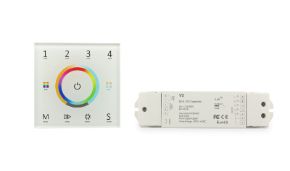
Mapping light zones in DIALux facilitates subsequent configuration of Skydance Master Panels (TD series) or DMX512 systems, ensuring each area receives the correct amount of light for each scenario (work, relax, event). DIALux allows documenting different scenarios in final reports, providing the installer with all necessary information for system programming.
Advantages of DIALux + Skydance + Ledpoint integration
The integration between DIALux (design), Skydance (control), and Ledpoint (LED sources) is the technological "bridge" that allows transforming individual components—the power of Ledpoint strips, the versatility of LightingLine profiles, and the intelligence of Skydance controls—into a certified, efficient, and harmonious lighting system.
Advanced simulations: rendering, false colors, UGR, and isolux
DIALux evo is not just a calculation tool: it is also a powerful generator of visualizations that help communicate the project to the client. The most used visualizations are: photorealistic rendering, false color map, isolux curves, UGR diagram, and luminance calculation. Let's see how each of these DIALux visualizations supports the professional in their daily work.
Photorealistic rendering
DIALux evo rendering allows visualizing the illuminated environment as it will actually appear, with realistic shadows, reflections, and light atmosphere. Particularly useful for presenting to the client the effect of Ledpoint solutions integrated into drywall.
False colors and isolux
The false color map translates illuminance values into an immediately readable color scale. Isolux curves connect points with equal illuminance, highlighting uniformity or non-uniformity of the project.
Advanced UGR calculation
DIALux calculates UGR for each defined workstation, considering observer position, gaze direction, luminaire luminances, and background. A UGR ≤ 19 is mandatory for offices and schools.
Updating DIALux and extending functionality with plug-ins
Keeping DIALux updated is fundamental to access new features, bug fixes, and updated DIALux plug-ins. Let's see how to update DIALux evo and DIALux 4, and how to manage the ecosystem of manufacturer DIALux plug-ins to extend the capabilities of the lighting design software.
How to update DIALux evo
To update DIALux evo there are two paths: automatic update at startup (DIALux software checks for updates and proposes installation) and manual update (downloading the new version from the DIAL website). Major DIALux evo releases come out on average twice a year.
How to update DIALux 4
To update DIALux 4 the process is similar, but releases are much rarer (bug fixes only, no new features). The latest version of DIALux 4 is 4.13.
DIALux plug-ins: how to install and manage them
Manufacturer DIALux plug-ins (Philips DIALux, Osram DIALux plug-in, Gewiss DIALux, Disano DIALux) are installed separately from the base software. They are downloaded from manufacturer websites, run as installers, and automatically integrate into DIALux. It is good practice to install only the DIALux plug-ins of manufacturers actually used, to avoid weighing down the software.
Exporting and presenting the project: PDF reports and client delivery
The final moment of every DIALux project is presentation to the client: a clear, complete, and professional PDF report that summarizes the lighting calculation results, highlights regulatory compliance, proposes the chosen Ledpoint solutions, and quantifies expected energy savings. Knowing how to prepare a quality DIALux report is a distinctive competency in the professional market.
Structure of a DIALux report
A well-structured DIALux report includes: cover page with project data, summary, environment description, luminaire list (with Ledpoint codes), calculation results (average illuminance, uniformity, UGR), tables and false color maps, regulatory verification, photorealistic renderings, energy consumption calculation.
Exporting to PDF and other formats
DIALux natively exports to PDF (reference format for the client), but also to PNG (visualization images), HTML (navigable report), and STF exchange format (for sharing the project with other DIALux designers).
Presenting results to the client
The ability to translate DIALux numbers into concrete benefits for the client is the skill that makes the difference: saying "I saved €1,500 per year on the electricity bill" is much more effective than "I reduced consumption by 35%". DIALux provides both data: it is up to the designer to present them in the most convincing way.
How much does a lighting design project and a DIALux calculation cost
The questions "how much does a lighting project cost", "how much does a lighting design project cost", "how much does a lighting project cost", and "how much does a lighting calculation cost" are among the most searched online and deserve a structured answer. Cost depends on several factors: project size and complexity, required level of detail, application area, involved regulations, designer experience.
Indicative cost table
| Project type | Complexity | Indicative cost |
|---|---|---|
| Single residential room | Low | €150 - €400 |
| Single office | Medium | €400 - €1,000 |
| Shop / Retail | Medium | €500 - €1,500 |
| Corporate building | High | €2,000 - €8,000 |
| Sports facility (padel) | High | €1,500 - €4,000 |
| Industrial installation | Very high | €3,000 - €15,000 |
| Street lighting | Very high | €5,000 - €30,000 |
Included and excluded costs
A complete lighting design project realized with DIALux typically includes: survey or analysis of the architectural project, 3D modeling in DIALux, execution of calculations, regulatory verification, PDF report, declaration of conformity. Not included: supply of luminaires, installation, on-site commissioning.
DIALux course: Italian tutorial, manual, community, and support
For those wanting to learn DIALux from scratch or deepen its advanced features, there are numerous training resources: in-person DIALux course, online DIALux course, free Italian DIALux tutorials, official DIALux manual, community and professional forums. Let's see the most valid options for acquiring solid skills in DIALux software.
Official DIAL DIALux course
DIAL organizes official DIALux courses (certified DIAL Certified Lighting Designer) at the Lüdenscheid headquarters and online. Indicative costs: €500-€1,500 for the basic course, €1,500-€3,000 for the complete certified path.
Free Italian DIALux tutorials
YouTube offers numerous free Italian DIALux tutorials: specialized channels of Italian lighting designers, recorded webinars from manufacturers (Philips, Disano), step-by-step guides created by universities and ITS.
Official DIALux manual
The official DIALux manual is freely downloadable in PDF from the DIAL website, both for DIALux evo and DIALux 4. It is available in English and German; the Italian version is partially available.
DIALux Community
The international DIALux community is active on dedicated forums, LinkedIn groups ("DIALux Users", "Lighting Designers"), Italian Facebook groups for lighting design, and niche Discord servers.
Common mistakes in DIALux and how to avoid them
Even experienced professionals make mistakes using DIALux: errors that can compromise calculation reliability, cause regulatory verification failures, or overestimate installation performance. Let's see the most common mistakes in DIALux and how to avoid them to always ensure reliable lighting calculations.
Mistake 1: wrong LDT file
Loading the LDT file of the bare strip instead of the "strip + profile + diffuser" system leads to overestimating illuminance by 30-50%. Always verify that the chosen LDT file represents the entire system.
Mistake 2: unrealistic reflectances
Setting reflectances too high (walls 80%, ceiling 90%) overestimates results. Standard values are ceiling 70%, walls 50%, floor 20%.
Mistake 3: forgotten maintenance factor
DIALux defaults to MF = 0.8: for dusty environments or high-temperature LEDs it may be necessary to lower it to 0.7 or 0.6.
Mistake 4: too coarse calculation grid
A too-wide grid (e.g., 2×2 m) does not detect non-uniformities. Always use grids ≤ 0.5×0.5 m for indoor environments.
Mistake 5: ignoring natural light
In environments with large windows, DIALux evo allows simulating the contribution of natural light: ignoring it means oversizing the installation.
The future of DIALux: AI, BIM, IoT, and adaptive lighting
DIALux is evolving to integrate emerging technologies: artificial intelligence for automatic project optimization, complete BIM integration with Revit and ArchiCAD, simulation of IoT scenarios with Skydance and Mean Well systems, adaptive lighting with human centric lighting. Let's see the 2026 trends of DIALux software and what to expect in the coming years.
AI in DIALux
Upcoming DIALux evo releases will introduce AI features for: automatically suggesting optimal luminaire arrangement, identifying similar catalog luminaires at lower costs, predicting performance degradation over time.
BIM and DIALux
DIALux BIM integration with Revit and ArchiCAD already allows importing and re-exporting IFC models today. In coming years, collaboration will be bidirectional and real-time.
Human Centric Lighting
DIALux increasingly supports simulations of Human Centric Lighting (HCL), i.e., lighting that varies color and intensity throughout the day to support the human circadian rhythm. Ledpoint CCT-adjustable strips integrated with Skydance systems are the perfect tool for implementing HCL scenarios on-site.
Frequently Asked Questions (FAQ) about DIALux
We conclude this comprehensive DIALux guide with a frequently asked questions section, which collects concise answers to the most common doubts of those approaching the lighting calculation software. The FAQs are organized in toggle dropdown format for quick consultation.
Is DIALux free?Yes, DIALux is completely free both in the DIALux evo version and the DIALux 4 version. There are no paid versions. DIALux software is freely downloadable from the official DIAL GmbH website after free registration. | |
What is DIALux used for?DIALux is used to calculate illuminance of indoor and outdoor environments, verify compliance with regulations such as UNI EN 12464-1 and EN 12193, size luminaires, optimize consumption, and generate professional reports for the client. | |
What is a free software for lighting calculation?DIALux is the main free software for lighting calculation, recognized as the global standard. Other free options include Relux (Swiss), but DIALux has the widest diffusion. | |
How much does DIALux cost?DIALux costs nothing: it is free software. Confusion about "DIALux Pro how much does it cost" stems from the fact that there is no paid Pro version of DIALux. | |
What formats does DIALux read?DIALux reads: LDT and IES (photometric), DWG and DXF (CAD), IFC (BIM), M3D (proprietary 3D), STF (exchange), SAT (3D ACIS), OBJ and 3DS. | |
What is lighting calculation and what is it used for?Lighting calculation is the mathematical procedure that determines illuminance, uniformity, and glare values in an environment. It serves to verify regulatory compliance, size luminaires, and optimize consumption. | |
How to download DIALux?DIALux download is performed from the official website dialux.com, download section, after free registration. Avoid third-party sites for DIALux free download to prevent malware. | |
How to download DIALux Evo?DIALux evo download is performed from the DIAL website: free registration, acceptance of terms, download of the installer of about 1-2 GB. | |
How to install DIALux Evo?Run the installer as administrator, accept terms, select folder and Italian language, wait for completion, and restart the PC. | |
How to update DIALux Evo?DIALux evo automatically checks for updates at startup; alternatively, manually download the new version from the DIAL website. | |
How to add a new luminaire in DIALux?Three methods: 1) manufacturer DIALux plug-in (Philips, Osram, Disano, Gewiss), 2) direct import of LDT/IES file, 3) DIAL Luminaire Finder online. | |
How much does a lighting design project cost?From €150 for a single residential room to over €15,000 for complex industrial or street installations. An average project for an office costs between €400 and €1,000. | |
Is there DIALux for Mac?No, there is no native version of DIALux for Mac. It can be used via Parallels Desktop, VMware Fusion, or Windows virtual machines in the cloud. | |
Is there DIALux online?There is no complete DIALux online. There are complementary web services such as DIALux Cloud (storage) and DIAL Luminaire Finder (luminaire search). | |
What is the best DIALux course?The official DIAL Certified Lighting Designer course is the reference; alternatively, free Italian DIALux tutorials on YouTube and courses from manufacturers like Disano or Philips. |
DIALux as a bridge between project and reality
DIALux is not simply a lighting design software: it is the common language that allows architects, electrical engineers, lighting technicians, electrical system designers, and architecture students to speak the same technical language in the world of lighting design. Mastering DIALux means being able to transform a design concept into a verifiable, regulation-compliant, and energy-optimized lighting calculation. DIALux is therefore the bridge between idea and built reality.
Integrating DIALux with products from the Ledpoint catalog means taking your design to a higher level, offering the client measurable, certified, and lasting solutions. The synergy between DIALux software and professional Ledpoint products is what distinguishes a quality lighting project from an approximate installation. DIALux with Ledpoint is the winning combination.
Whether you are taking your first steps with an Italian DIALux tutorial or you are an experienced professional seeking new techniques, DIALux will continue to accompany you in your career. DIALux is free, universal, continuously updated, and above all works perfectly with Ledpoint solutions. Discover all DIALux-compatible products on our Ledpoint shop and bring the light of your projects to a superior level of excellence with DIALux. The future of lighting design speaks DIALux: make sure you speak it too.
This article was developed with the support of artificial intelligence and subsequently reviewed, corrected, and validated by the Ledpoint.it technical team, which guarantees its reliability and compliance with official sources.